Best PDF Compressor Tools 2026: Compared for Size, Quality & Privacy
Finding the best PDF compressor tools 2026 has one problem most roundups don't mention: the lists are usually assembled from other lists, with no actual compression testing behind them.
This article is built differently. We personally compressed four different PDF files — text-heavy, image-heavy, scanned, and mixed — using KhanX Tools, and recorded the exact before and after file sizes. Those are the only benchmark numbers you'll find here.
For the other seven tools in this comparison — Adobe Acrobat, Smallpdf, iLovePDF, PDF24, SaferPDF, Sejda, and PDFelement — we researched their verified features directly from official documentation: free limits, file size caps, processing method (browser-side or server-side), privacy policies, and watermark behaviour. Compression benchmark results for those tools are marked "Not tested."
The comparison covers both online PDF compressor options that run in your browser or upload to a server, and desktop tools that process files locally — so you can find the right fit regardless of how you work.
The result is a comparison built on what we actually know, not what we estimated.
How We Compared These PDF Compressors
Our Test Files
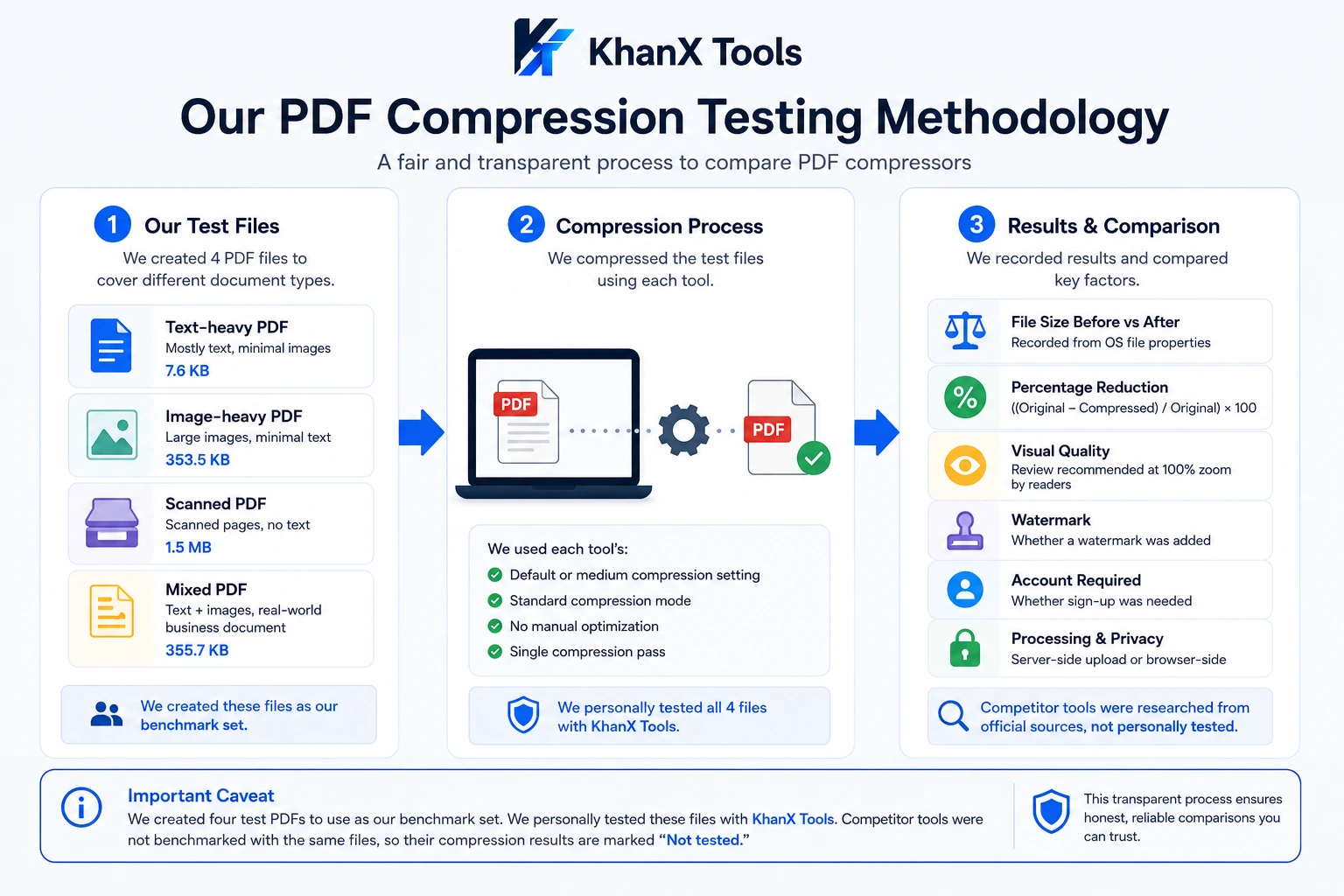
We compressed four different PDF types to cover the range of documents people actually need to shrink:
- Text-heavy PDF (7.6 KB): A document consisting mostly of paragraphs and formatted text, minimal images. Tests how well a compressor handles document structure and font data.
- Image-heavy PDF (353.5 KB): A multi-page file dominated by large embedded images. Image-heavy PDFs are where most compression happens — or doesn't.
- Scanned PDF (1.5 MB): A document scanned from paper, saved as image-only pages with no selectable text. These tend to be the largest files and the hardest to compress without quality loss.
- Mixed PDF (355.7 KB): A business-style document combining text sections with embedded images. The most common type of real-world PDF.
We created four test PDFs to use as our benchmark set. We personally tested these files with KhanX Tools, which offers three compression levels: Maximum, Balanced, and High Quality. Competitor tools were not benchmarked with the same files, so their compression results are marked "Not tested."
What We Measured
For KhanX Tools specifically, we recorded:
- Original file size vs. compressed file size
- Percentage reduction (calculated as: ((Original − Compressed) ÷ Original) × 100)
- Visual output quality (reviewed at 100% zoom)
- Whether a watermark appeared
- Whether an account or upload was required
Why Competitor Results Are Marked "Not Tested"
Running a fair compression benchmark requires using the same files on the same day under the same conditions. We did not have access to every tool's compression feature at the time of testing — Adobe Acrobat Online, for example, presented a Premium account requirement during our testing session. Rather than use numbers sourced from other articles or estimate results, we chose to mark competitor benchmark results as "Not tested."
What we can report accurately for competitors is their verified feature set: free limits, file size caps, watermark policies, privacy architecture, batch support, and pricing — all sourced from official documentation. Those facts are what most people need when choosing a tool, and they hold up better over time than compression percentages measured in different conditions.
Quick Comparison of the Best PDF Compressors
Here's how the eight tools in this roundup compare on the factors that matter most. Scroll down for full details on each.
| Tool | Best For | Free | Processing | Benchmark | Privacy | Batch (Free) | Free Limit | Watermark |
|---|---|---|---|---|---|---|---|---|
| KhanX Tools | Privacy-first users | ✅ Yes | Browser-side | ✅ Tested | ✅ Never uploaded | ❌ No (one at a time) | No hard limit enforced | ❌ None |
| Adobe Acrobat | Large files, professional use | ⚠️ 1/30 days | Server-side | ❌ Not tested | ❌ Uploaded | ❌ Paid only | 2 GB | ❌ None |
| Smallpdf | Simple, occasional use | ⚠️ 2/day | Server-side | ❌ Not tested | ❌ Uploaded | ❌ Paid only | 100 MB | ⚠️ Some tools |
| iLovePDF | Frequent free users | ✅ Unlimited | Server-side | ❌ Not tested | ❌ Uploaded | ✅ Yes | Disputed | ❌ None |
| PDF24 | Unlimited free + desktop | ✅ Unlimited | Online: server / Desktop: local | ❌ Not tested | ⚠️ Online / ✅ Desktop | ✅ Yes | No stated limit | ❌ None |
| SaferPDF | Sensitive documents | ✅ Unlimited | Browser-side | ❌ Not tested | ✅ Never uploaded | ❌ Unconfirmed | ~200 MB (RAM) | ❌ None |
| Sejda | Moderate use + desktop | ✅ 3/hour | Online: server / Desktop: local | ❌ Not tested | ⚠️ Online / ✅ Desktop | ❌ Unconfirmed | 100 MB / 200 pp | ❌ None |
| PDFelement | Full PDF editor suite | ⚠️ Trial only | Desktop: local / Online: server | ❌ Not tested | ✅ Desktop: local | ❌ Paid only | 100 MB (online) | ✅ YES (trial) |
"Browser-side" means the file never leaves your device. "Server-side" means your file is uploaded to the tool's servers, then deleted within a stated window. iLovePDF's free file size limit is disputed across sources — verify before uploading large files. PDFelement's watermark applies to all trial output.
The Best PDF Compressor Tools in 2026
1. KhanX Tools — Best for Browser-Based, No-Upload Compression
Best for: Users who want effective compression without uploading their files to a third-party server.
KhanX Tools is a free, browser-based PDF suite. The compression tool runs entirely inside your browser — your PDF is processed locally on your device, and the file is never transmitted to any server. There is no sign-up, no watermark, and no account required.
Our Test Results
These are the only tool results we personally measured using the four test files described above:
| PDF Type | Original Size | Compressed Size | Reduction |
|---|---|---|---|
| Text-heavy | 7.6 KB | 5.1 KB | 32.9% |
| Image-heavy | 353.5 KB | 49.9 KB | 85.9% |
| Scanned PDF | 1.5 MB | 64.9 KB | ≈95.8% |
| Mixed (text + images) | 355.7 KB | 98.7 KB | ≈72.3% |
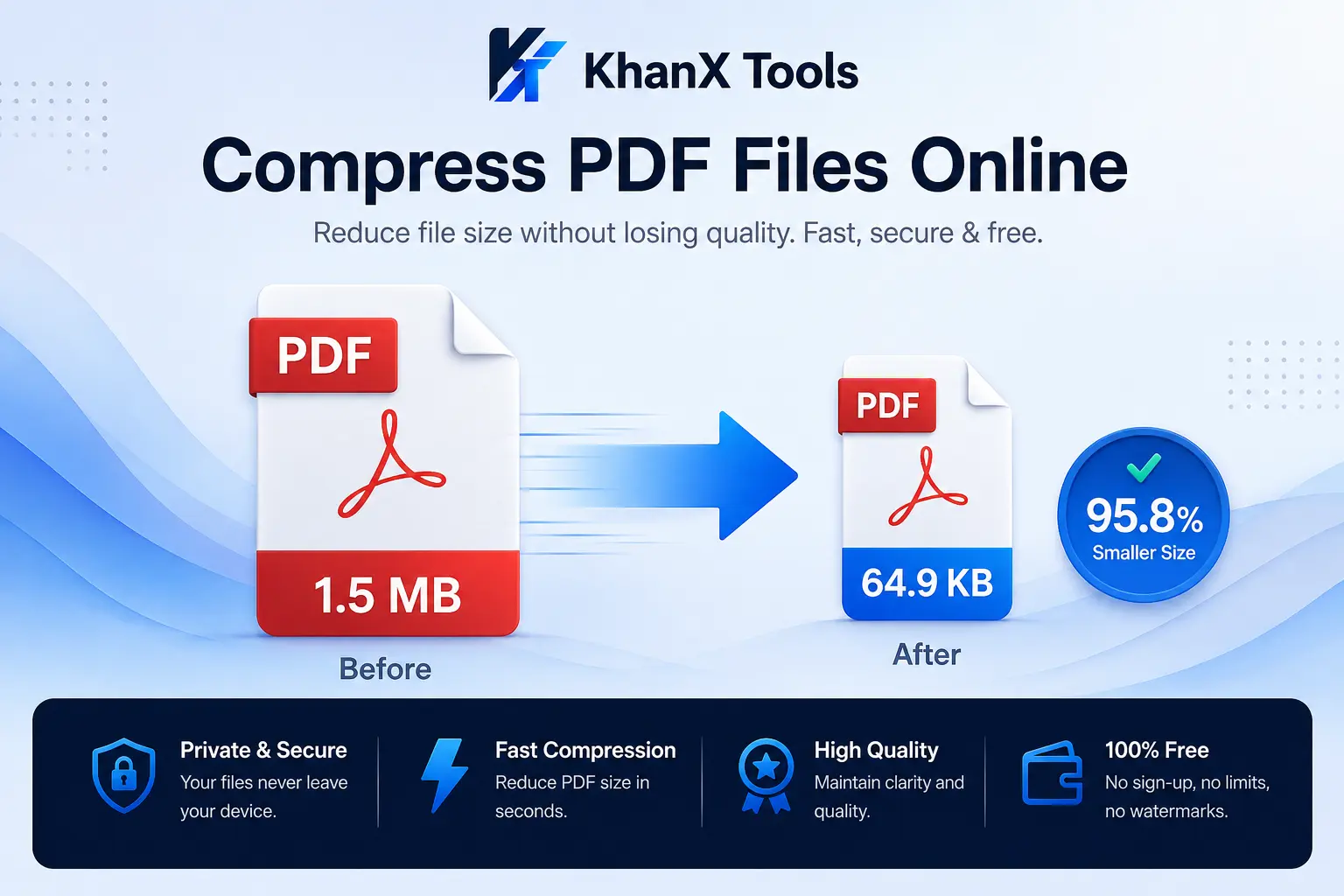
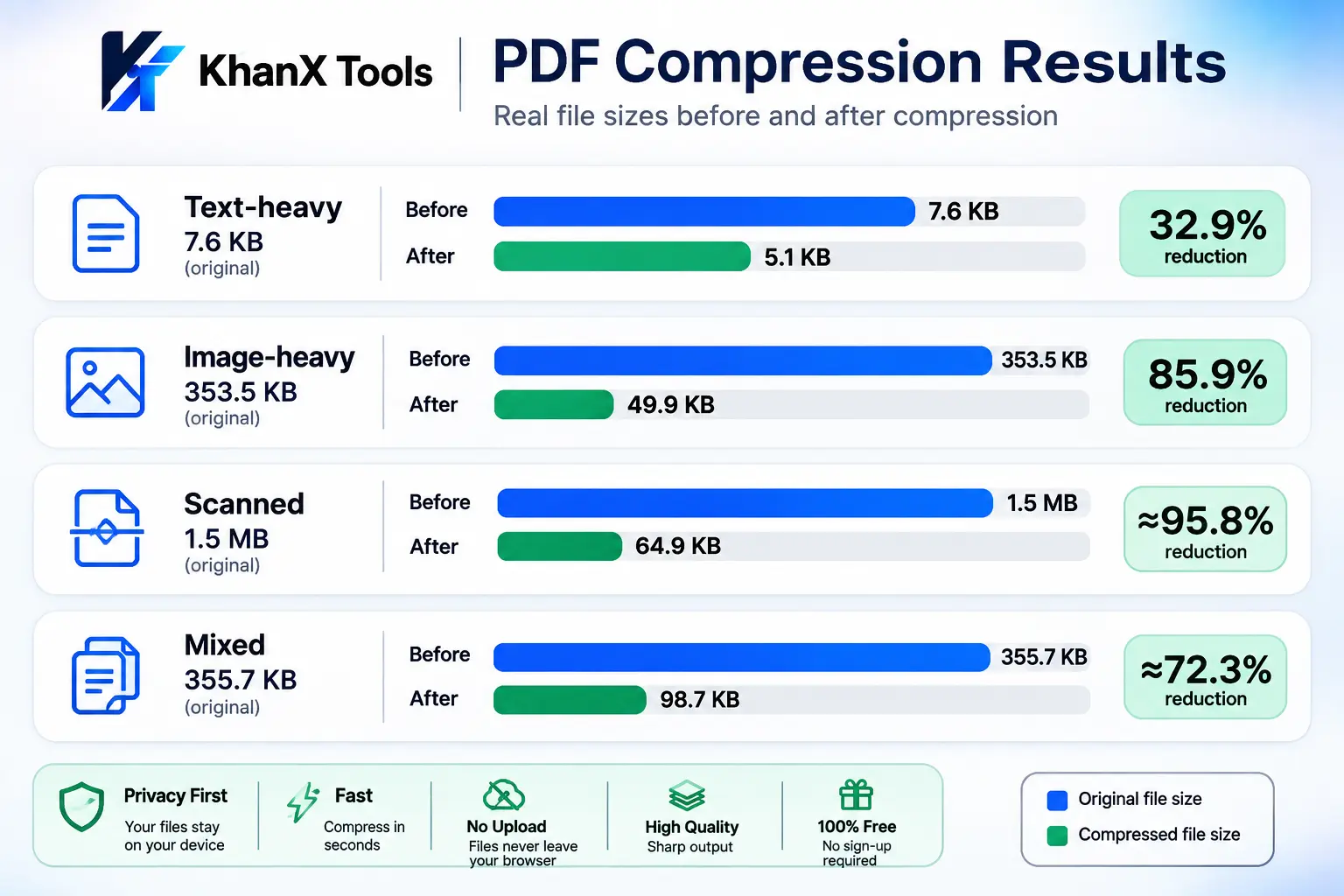
The standout number is the scanned PDF: 1.5 MB reduced to 64.9 KB — a 95.8% reduction. Scanned documents are almost entirely composed of image data, which responds well to compression. The image-heavy PDF also compressed substantially, from 353.5 KB to 49.9 KB (85.9%). The text-heavy PDF compressed least at 32.9%, which is typical — text and font data don't compress as aggressively as image data.
File-size reduction was recorded for all four test files. Visual quality should be evaluated separately, because acceptable quality depends on the document type and the compression settings used. We recommend opening the compressed output at 100% zoom in your PDF viewer and comparing it against the original before distributing the file.
Key Features
- Processing: Browser-side — files stay on your device
- Sign-up required: No
- Watermark: No
- Free limits: No daily task cap
- Compression levels: Maximum, Balanced, and High Quality
- Batch compression: Not supported — one PDF is compressed at a time
- Maximum file size: No hard file-size limit is enforced in the current tool. Practical limits depend on the user's browser/device memory and the PDF's page count and complexity.
What We Liked
- File sizes reduced significantly across all four test types — particularly on image-heavy and scanned documents
- Browser-side processing removes the privacy concern that applies to every server-based tool in this list
- Zero friction: no account, no waiting for server processing, no watermark on output
Limitations to Be Aware Of
- Results will vary depending on your PDF's content — our text-heavy PDF only compressed 32.9%, which is modest
- Browser-based tools handle processing on your device. For very large files, speed depends on your device's available memory and CPU
- The tool's feature set focuses on compression; if you need advanced editing, OCR, or e-signatures, a full-suite tool like PDFelement may better serve you
Students, freelancers, and professionals who regularly compress documents containing personal or business-sensitive information, and anyone who simply doesn't want their files sent to a third-party server.
You can compress your PDF directly in the browser here — no sign-up, no upload, no watermark. If you also need to merge multiple PDFs or split a PDF into separate files, those tools are available in the same suite.
2. Adobe Acrobat Online — Best for Very Large Files
Best for: Occasional compression of very large files; users already in the Adobe ecosystem.
Benchmark result: ❌ Not tested by KhanX Tools — the compression feature required a Premium account during our testing session.
Adobe is the company that created the PDF format, and their online compression tool carries that authority. The online compressor handles files up to 2 GB — by far the largest file size limit of any tool in this roundup.
The free tier is narrow: one compression per 30-day rolling period, with no account required for that single use. The tool offers three compression levels — Low, Medium, and High — and does not add a watermark to output.
Files are uploaded to Adobe's servers for processing and deleted after compression. The desktop version of Adobe Acrobat Pro compresses files locally, which eliminates the server-upload concern for paid users.
- Free limit: 1 use per 30-day rolling period (no account needed)
- File size limit: Up to 2 GB
- Compression levels: Low / Medium / High
- Batch: Paid only (Acrobat Pro)
- Server-based: Yes (online); local: Yes (desktop, paid)
- Watermark: No
- File deletion: Deleted from Adobe servers after processing
Limitation: The one-use-per-month free access makes Adobe impractical as a regular tool for most users. If you compress PDFs more than once a month, you'll need a subscription.
3. Smallpdf — Clean Interface, Restrictive Free Tier
Best for: Occasional users who compress at most 1–2 files per day and value a well-designed interface.
Benchmark result: ❌ Not tested by KhanX Tools.
Smallpdf is one of the most well-known names in online PDF tools, used by tens of millions of people monthly. The interface is clean, the workflow is simple, and the brand is established. The compression tool works directly in the browser and supports files up to 100 MB on the free plan.
The significant catch is the free tier: 2 tasks per day, across all of Smallpdf's tools. If you compress one PDF and then merge another, you've used your daily allowance.
The free plan also restricts compression to "Basic" level only. "Moderate" and "Strong" compression are paywalled behind a Pro subscription. Files are uploaded to Smallpdf's servers, processed, and deleted after approximately one hour. Smallpdf holds ISO 27001 certification and uses TLS encryption in transit.
- Free limit: 2 tasks per day (all tools combined)
- File size limit: 100 MB (free)
- Compression levels: Basic (free); Moderate + Strong (Pro only)
- Batch: Paid only
- Server-based: Yes
- Watermark: Added on some tools (verify for compression specifically)
- File deletion: ~1 hour
Limitation: The 2-task daily cap is the most restrictive free tier of any tool in this roundup.
4. iLovePDF — Best Unlimited Free Online Compressor
Best for: Frequent users who need to compress multiple PDFs daily without paying anything.
Benchmark result: ❌ Not tested by KhanX Tools.
iLovePDF offers one of the most genuinely open free tiers in this comparison. Usage is completely free, no registration is required, there are no hidden costs, and compressed PDFs are produced without watermarks. Files are processed on iLovePDF's servers, encrypted during processing, and automatically deleted after a maximum of two hours.
Multiple compression levels are available on the free plan, and batch compression is supported without a paid account. iLovePDF is GDPR compliant and explicitly states no third-party access to your files.
One important caveat: the free file size limit is reported differently across sources — figures of 25 MB, 100 MB, and 200 MB have all appeared in third-party comparisons. Test iLovePDF's current limit directly on their help pages before uploading large files.
- Free limit: No stated daily task cap
- File size limit: Disputed — verify before use
- Compression levels: Multiple, available free
- Batch: Yes (free)
- Server-based: Yes
- Watermark: No
- File deletion: Automatically deleted after 2 hours; GDPR compliant
Limitation: Files are still uploaded to iLovePDF's servers, which creates an unavoidable window of third-party exposure.
5. PDF24 — Best for Truly Unlimited Free Use
Best for: Users who compress PDFs frequently and want a completely free tool with no caps, including a desktop option for Windows.
Benchmark result: ❌ Not tested by KhanX Tools.
PDF24 is the standout option for users who want genuinely unlimited free compression without any subscription pressure. No daily task cap, no watermark, no sign-up required, and batch compression is supported.
The online tool processes files on PDF24's own servers, but PDF24 also offers a free Windows desktop app — PDF24 Creator — that processes files entirely locally on your computer.
- Free limit: No stated limits ("no artificial limits" per official documentation)
- File size limit: No officially stated cap
- Compression levels: Compression mode + quality/DPI settings
- Batch: Yes (free, online and desktop)
- Online: Server-based; Desktop: Fully local
- Watermark: No
- Desktop app: PDF24 Creator for Windows (free, local processing)
- File deletion: "Not stored longer than necessary" — exact timeframe not specified
Limitation: Online tool is server-based. Desktop app is Windows-only; Mac and Linux users don't have a local option through PDF24.
6. SaferPDF — Best for Sensitive and Confidential Documents
Best for: Lawyers, accountants, healthcare workers, and anyone compressing documents they cannot afford to upload to an external server.
Benchmark result: ❌ Not tested by KhanX Tools.
SaferPDF's entire value proposition is privacy. The tool runs Ghostscript compiled to WebAssembly inside your browser — meaning the compression engine runs on your device. Your PDF file never travels across the internet, never touches a third-party server, and never exists anywhere except in your browser's local memory.
SaferPDF offers three compression levels: Recommended, High Quality, and Extreme. The tool also works offline after your first use — the compression engine caches in the browser. For users who want to verify this independently, you can open browser Developer Tools, go to the Network tab, and confirm no upload request fires.
- Processing: 100% browser-side — files never uploaded
- Free limit: No stated limit
- File size limit: ~200 MB or more (limited by browser memory)
- Compression levels: Recommended / High Quality / Extreme
- Batch: Not confirmed in official sources
- Watermark: No
- Offline: Yes, after first use
- GDPR compliant: Yes (by architecture, not just policy)
Limitation: Batch compression could not be confirmed from official sources. SaferPDF is a focused tool rather than a full PDF suite.
7. Sejda — Best for Moderate Use with an Honest Free Tier
Best for: Moderate users who appreciate transparent limits and want the option of a desktop app.
Benchmark result: ❌ Not tested by KhanX Tools.
Sejda is notable for being unusually transparent about what the free plan actually offers. On the compression tool page itself, the limit is displayed directly: "Free service for documents up to 200 pages or 100 MB and 3 tasks per hour." Most tools bury this kind of information.
The online tool uploads files to Sejda's servers (with encrypted transfer and automatic deletion after two hours). A desktop version — Sejda Desktop — processes files entirely locally on Mac, Windows, or Linux, but requires a paid plan.
- Free limit: 3 tasks per hour (online)
- File size limit: 100 MB / 200 pages (online, free)
- Compression modes: Default + Faster (skips small images)
- Batch: Not confirmed for compression specifically
- Online: Server-based; Desktop: Fully local
- Watermark: No
- File deletion: Automatically and permanently deleted after 2 hours
- Desktop app: Available for Mac, Windows, Linux — but requires a paid plan
Limitation: The desktop app is not free. If you want Sejda's local-processing option, you'll need a Week Pass ($5 for 7 days) or an annual subscription.
8. PDFelement — Best Full PDF Editor Suite (Paid)
Best for: Professionals who need a complete PDF editor — not just a compressor — and are willing to pay for it.
Benchmark result: ❌ Not tested by KhanX Tools.
PDFelement by Wondershare is the most fully featured tool in this roundup. It includes PDF editing, OCR for scanned documents, AI-powered summarization and translation, form creation, digital signatures, batch processing, and more. Available on Windows, Mac, iOS, Android, and web.
The important caveat: both the registered and unregistered trial versions add a visible watermark to all saved output. The Compress PDF feature is additionally unavailable in the registered desktop trial version. PDFelement is effectively a paid tool.
- Free trial: Adds visible watermark to all output
- Compress PDF: Blocked in registered desktop trial
- Compression levels: High / Medium / Low (desktop)
- Batch: Yes — desktop paid version only
- Desktop: Fully local processing
- Online version: Server-based; 1 free use per day; 100 MB / 260 pages
- Pricing: $79.99/year (individual) or $129.99 perpetual license
- ISO 27001 certified
Limitation: The watermark is a hard practical barrier. If you're evaluating PDFelement, go in expecting to purchase it.
Which PDF Compressor Should You Choose?
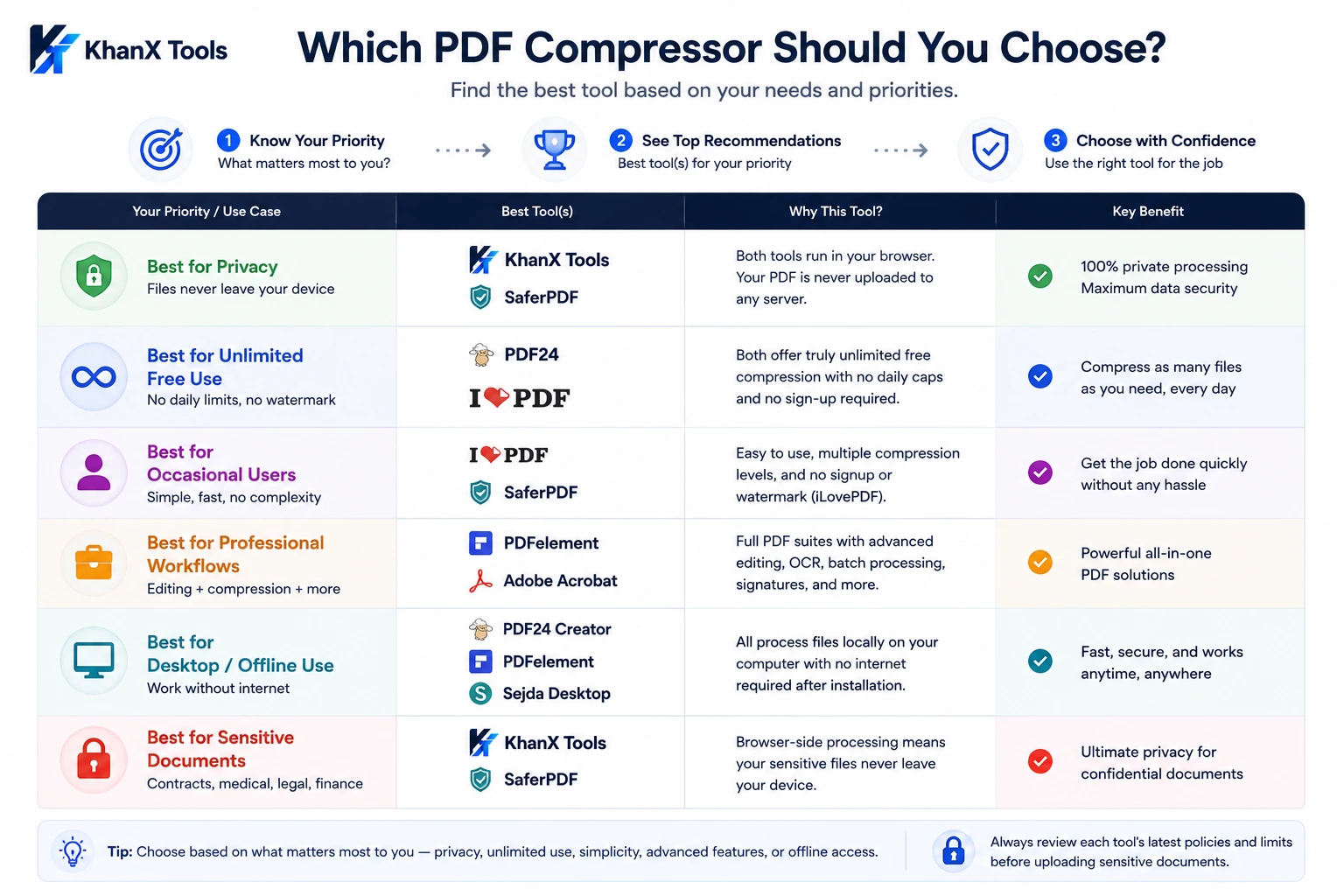
The best PDF compressor depends on what you're actually trying to accomplish. Here's a plain-English breakdown:
Best for Privacy — Files Never Leave Your Device
Use KhanX Tools or SaferPDF. Both process files entirely in the browser. For anyone compressing contracts, tax documents, medical records, or client files — these are the only responsible options in this list. PDF24 Desktop and Sejda Desktop also process locally, but require Windows (PDF24) or a paid plan (Sejda).
Best for Unlimited Free Use Without Daily Limits
Use PDF24 (online or desktop) or iLovePDF. Both are genuinely unlimited on the free tier: no daily caps, no watermarks, no sign-up. PDF24 also has no subscription model at all — it's supported by ads.
Best for Occasional Users
iLovePDF is the simplest choice: drop your file in, choose a compression level, download. No account, no watermark, multiple compression levels free. SaferPDF is equally simple if privacy matters to you. Avoid Smallpdf for occasional use — the 2-task daily cap will eventually frustrate you.
Best for Professional PDF Workflows
PDFelement (paid) is the answer if you need compression alongside editing, OCR, batch processing, e-signatures, and AI tools on the same platform. Adobe Acrobat Pro serves the same professional market with the deepest format support.
Best for Desktop and Offline Use
PDF24 Creator (Windows, free), PDFelement (paid, all platforms), or Sejda Desktop (paid, all platforms). All three process files locally with no internet required after installation.
Best for Sensitive or Confidential Documents
KhanX Tools and SaferPDF are the only two tools in this roundup that guarantee your file never leaves your device. All other tools upload your document to a remote server, even if they delete it quickly afterward.
What Makes a Good PDF Compressor?
Compression Ratio vs. Output Quality
Compression ratio is the percentage by which a tool reduces your file's size. A higher ratio is not automatically better — aggressive compression often degrades image quality, making photos blurry or text fuzzy. Our KhanX Tools test illustrates this well: the scanned PDF achieved 95.8% reduction because it's made entirely of image data. The text-heavy PDF only compressed 32.9% — there's simply less redundant data to remove in clean text documents.
Lossy vs. Lossless PDF Compression
- Lossless compression removes redundant data — duplicate objects, unused metadata, embedded color profiles — without touching visible content. The output is visually identical to the original.
- Lossy compression reduces image resolution (image downsampling) to achieve greater size reduction. Images may appear softer or slightly blurred at high zoom levels, but the file gets significantly smaller.
Most tools use a combination: lossless techniques for text and document structure, lossy techniques for embedded images.
DPI and Image Downsampling
DPI (dots per inch) is the resolution of images embedded in a PDF. A scanned document saved at 600 DPI looks sharp on screen but creates a very large file. Reducing that to 150 DPI keeps the document readable while dramatically reducing file size — which is why our 1.5 MB scanned PDF compressed to 64.9 KB.
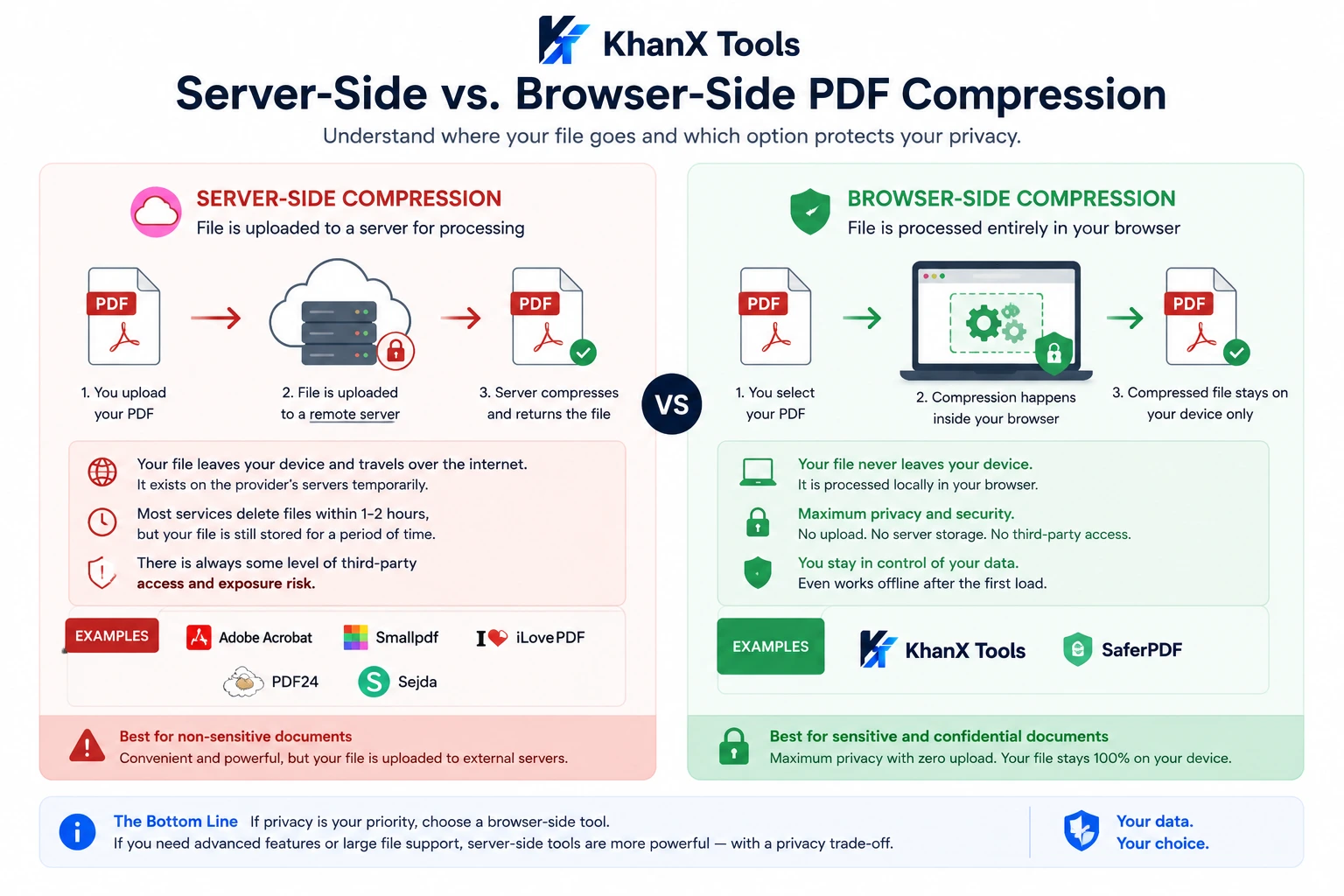
Server-Side vs. Browser-Side Processing — Why It Matters
Server-side tools upload your file to a remote computer, compress it there, and send the result back. Your document temporarily exists on infrastructure you don't control. Most tools delete uploaded files within 1–2 hours and use encrypted transfer. For general documents this is usually acceptable.
Browser-side tools run the compression code inside your browser tab. The file never leaves your device. For confidential documents — legal, medical, financial — this is the only approach that eliminates third-party exposure entirely.
Other Factors That Matter
- Batch compression: The ability to compress multiple PDFs at once. Most free tiers don't include it. PDF24 and iLovePDF both support batch compression for free. KhanX Tools processes one PDF at a time.
- File size limits: Most online free tools cap between 25 MB and 200 MB. Adobe Acrobat's 2 GB limit stands alone.
- Watermarks: Only PDFelement's trial adds a watermark in this roundup.
- Daily task limits: Smallpdf's 2-task/day limit and Adobe's 1-use/30-days limit are the most restrictive. PDF24, iLovePDF, SaferPDF, and KhanX Tools impose no daily caps.
- Ease of use: Most tools in this list have simple drag-and-drop interfaces. Smallpdf has the most polished UI. PDFelement has the most feature-rich (and most complex) desktop interface.
Mobile users can also compress PDF online using any of the browser-based tools in this roundup — no app download required. If you need to reduce PDF file size before submitting to a job portal, uploading to a web form, or sending by email from your phone, tools like KhanX Tools and SaferPDF process the file locally in your mobile browser, keeping your PDF file size manageable without exposing your document to a remote server.
Frequently Asked Questions About PDF Compression
1. What is the best PDF compressor in 2026?
There's no single best PDF compressor for everyone. For privacy and no-upload processing, browser-based tools like KhanX Tools or SaferPDF are the right answer. For unlimited free online use, iLovePDF and PDF24 are the most generous. For professional editing alongside compression, PDFelement is the most capable. For the largest file size support, Adobe Acrobat's 2 GB limit is unmatched.
2. What is the best free PDF compressor?
For genuinely unlimited free compression without daily limits, watermarks, or sign-ups, PDF24 and iLovePDF are the strongest options. PDF24 also offers a free Windows desktop app. If privacy matters, KhanX Tools and SaferPDF are browser-based and equally free. Smallpdf is free but limited to 2 tasks per day.
3. Can I compress a PDF without uploading it to a server?
Yes. Browser-based tools like KhanX Tools and SaferPDF run the compression process entirely inside your browser. Your file never travels across the internet. You can verify this yourself: open browser Developer Tools, go to the Network tab, and compress a file — you'll see no upload request.
4. Can I compress a PDF without losing quality?
For text-heavy PDFs, yes — lossless compression removes metadata and redundant data without changing visible content. For image-heavy PDFs, some quality reduction is usually necessary to achieve meaningful file size reduction. Using a lower compression setting (where available) reduces visible quality loss. Quality outcomes depend on the tool, compression level, and your specific PDF's content.
5. Is online PDF compression safe?
For everyday documents, reputable online tools are generally safe. Established services like iLovePDF, Smallpdf, and Sejda use encrypted connections and delete uploaded files within 1–2 hours. For sensitive documents — contracts, medical records, legal filings — the safest approach is a browser-based tool where files never leave your device.
6. What is a good PDF compression ratio?
A 50–80% reduction is typical for most mixed documents. Image-heavy and scanned PDFs can achieve 80–95%+ reduction. Text-only PDFs typically compress 10–35%. Using KhanX Tools, we recorded 32.9% on a text-heavy PDF, 85.9% on an image-heavy one, and 95.8% on a scanned document. Results vary depending on your file's content and the tool's compression algorithm.
7. Can I compress multiple PDFs at once for free?
Yes, with some tools. PDF24 supports batch compression on both its online tool and desktop app, for free. iLovePDF also supports batch on the free plan. Smallpdf and Adobe Acrobat require paid plans for batch. KhanX Tools currently processes one PDF at a time and does not support batch compression.
8. Why is my PDF still large after compression?
The most common reasons are: the file contains high-resolution scanned images that weren't downsampled enough; the PDF has many unsubsetted fonts; or the file was already compressed with little redundant data left. Try using a higher compression level, or switching to a tool that allows manual DPI settings.
9. Do free PDF compressors add watermarks?
Most don't. Of the eight tools in this roundup, only PDFelement's trial version adds a watermark to output — prominently, across all saved files. iLovePDF, PDF24, SaferPDF, Sejda, KhanX Tools, and Adobe Acrobat Online do not add watermarks on free compression output.
Final Verdict
The PDF compressor tools reviewed here fall into three practical categories.
Tools with no meaningful free access: Adobe Acrobat (1 use per 30 days) and PDFelement (watermark on all free output) are effectively paid tools. They serve their respective markets well — Adobe for the 2 GB file size ceiling, PDFelement for professionals who need a complete PDF editor.
Server-based free tools: Smallpdf, iLovePDF, PDF24, and Sejda all upload files to remote servers. The main differences are their free tier generosity: PDF24 and iLovePDF are genuinely unlimited; Smallpdf's 2-task daily cap is the most restrictive; Sejda's 3-tasks-per-hour is moderate. For non-sensitive documents, any of these four work well.
Browser-based tools (files never uploaded): KhanX Tools and SaferPDF are the two tools in this roundup where your file never leaves your device. This is the meaningful differentiator if you're handling anything you'd consider confidential.
Based on our own file-size testing, KhanX Tools produced an 85.9% reduction on an image-heavy PDF and a 95.8% reduction on a scanned document. Those are the file-size figures we recorded; visual quality assessment is something we recommend readers do against their own originals, since acceptable quality depends on how the file will be used.
What we can say is that the best PDF compressor for you depends on what you're compressing, how often, and how much you care about where your file goes during the process.
If you'd like to try browser-based compression yourself, compress your PDF with KhanX Tools — no upload, no sign-up, no watermark. For other PDF tasks, the KhanX Tools suite also includes PDF to JPG conversion, merging, splitting, and more.
Article prepared by KhanX Tools. Feature information for competitor tools sourced from official documentation and current third-party sources as of August 2026. Features and pricing may change — verify on each tool's official site before making a decision.
Try It Free — Right Now
All KhanxTools PDF tools work in your browser. No account needed, no watermarks.
Open PDF Tools