How to Save a Word Document as a PDF (Every Method, Every Device)

Saving Word documents as PDF locks the formatting for any device or OS
Quick answer: To save a Word document as a PDF, open your Word document, go to File → Save As → choose PDF from the format dropdown, and click Save. If you don't have Microsoft Word installed, upload your Word document to KhanxTools free Word to PDF converter and download the PDF in seconds — no account needed, your Word document never leaves your browser.
In This Guide
- Why save a Word document as a PDF?
- Method 1: Convert Word to PDF free online (no software)
- Method 2: Save Word document as PDF on Windows
- Method 3: Save Word document as PDF on Mac
- Method 4: Save Word document as PDF on iPhone
- Method 5: Save Word document as PDF on Android
- Method 6: Convert Word document to PDF via Google Docs
- Method 7: Word document to PDF with LibreOffice (free desktop)
- How to make sure your PDF looks exactly like your Word document
- Which method should you use? (Comparison table)
- What to do after you convert: compress your PDF
- Frequently asked questions
Every day, millions of people need to convert a Word document to a PDF — before sending a resume, submitting a college application, sharing a contract, or emailing an invoice. PDF is the universal standard because it locks your fonts, layout, and images in place regardless of what device or operating system opens the file. A Word document, by contrast, can reflow and break when the recipient uses a different version of Word or a different font set.
This guide covers every reliable method to save a Word document as a PDF — on Windows, Mac, iPhone, Android, and directly in your browser without any software at all. We've also included a comparison table so you can pick the right method for your situation, plus formatting tips gathered from thousands of real users who've run into common PDF conversion problems.
Why You Should Save a Word Document as a PDF
Converting a Word document to PDF isn't just a formatting preference — there are concrete reasons professionals, students, and businesses make it the default:
- PDF preserves your layout. Fonts, spacing, images, and tables look identical on every device. A Word document opened on a Mac may shift your carefully formatted resume by a centimetre; a PDF won't.
- PDF prevents accidental edits. When you send a Word document, recipients can (and sometimes do) change content. A PDF is read-only by default.
- PDF is universally accepted. Job applications, legal filings, academic submissions, and government forms almost always require PDF, not a Word document.
- PDF is smaller and faster to share. A well-compressed PDF is typically 50–80% smaller than the equivalent Word document, making it faster to email and easier to store. (See our guide on how to compress a PDF without losing quality.)
- PDF is more secure. You can add password protection and permissions to a PDF that don't exist natively in a Word document.
💡 Still deciding between PDF and Word? Read our in-depth guide: PDF vs Word — which format should you use?
Method 1: Convert Word to PDF Free Online — No Software Needed
This is the fastest method if you don't have Microsoft Word, if you're on a shared computer, or if you want to convert a Word document from your phone browser without installing anything. KhanxTools Word to PDF converter processes your Word document entirely in your browser — your document is never uploaded to a server, so confidential Word documents stay private.
Open KhanxTools Word to PDF
Go to khanxtools.com/tools/word-to-pdf.html. The tool supports .doc and .docx Word document formats.
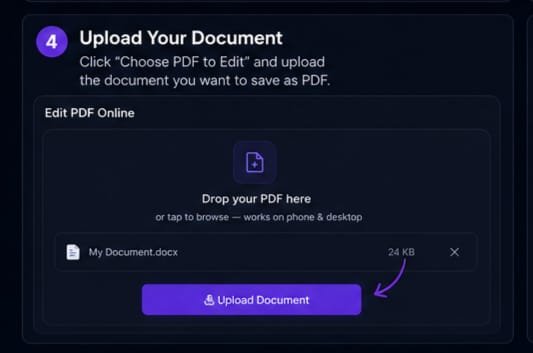
Upload your Word document
Click Upload Document or drag and drop your Word file into the drop zone. Works on desktop and mobile browsers — no app install required.
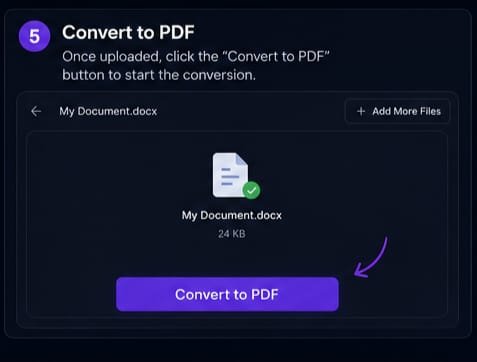
Click "Convert to PDF"
Press the Convert to PDF button. KhanxTools converts your Word document, preserving fonts, images, and tables.
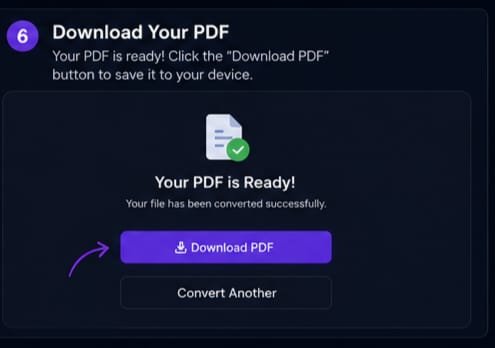
Download your PDF
Click Download PDF to save the converted file. Your PDF is ready in seconds.
✅ Privacy note: KhanxTools converts your Word document entirely client-side. Your Word file is never transmitted to any server. This makes it safe to use for resumes, contracts, and any confidential Word document.
Method 2: Save a Word Document as a PDF on Windows
Microsoft Word on Windows has built-in PDF export. This is the highest-fidelity method for converting a Word document when you have a Microsoft 365 subscription or a standalone Word license.

Always convert university assignments to PDF before submitting
Using File → Save As (Word 2016, 2019, 2021, Microsoft 365)
Open your Word document
Launch Microsoft Word and open the Word document you want to convert to PDF.
Go to File → Save As
Click File in the top-left ribbon, then click Save As. Choose a location on your computer.
Choose PDF from the Save As type dropdown
In the "Save as type" dropdown, select PDF (*.pdf). You'll also see an option to optimise for "Standard" (higher quality for printing) or "Minimum size" (smaller PDF for sharing online).
Click Save
Word converts the Word document and saves it as a PDF in the same location. The original Word document is unchanged.
Using File → Export → Create PDF/XPS (alternative path)
In newer versions of Word, you can also go to File → Export → Create PDF/XPS Document and click Create PDF/XPS. This opens the same dialogue but gives you an extra option to open the PDF in your default viewer immediately after conversion.
⚠️ Avoid "Print to PDF" if you care about layout accuracy. Printing to PDF in Windows uses the Microsoft Print to PDF virtual printer, which can alter margins and scaling compared to the native Word export. Always use File → Save As → PDF or File → Export for the best PDF output from a Word document.
Keyboard shortcut
In Microsoft Word on Windows, press F12 to open Save As instantly, then select PDF from the file type dropdown. This is the fastest keyboard-driven way to convert a Word document to PDF without touching the mouse.
Method 3: Save a Word Document as a PDF on Mac
Word for Mac and the built-in macOS Print dialog both convert Word documents to PDF reliably.
Method A: Word for Mac → Save As PDF
Open your Word document in Word for Mac
Open the Word document you want to save as a PDF.
Go to File → Save As
In the menu bar click File → Save As. A dialogue box opens.
Select PDF from the File Format dropdown
Click the File Format dropdown and choose PDF.
Click Export
The Word document is saved as a PDF in your chosen location. The original Word document is preserved.
Method B: macOS Print Dialog → Save as PDF
This works for any app on Mac, not just Word:
- Open your Word document in any application (Word, Pages, or even Preview).
- Press ⌘ + P to open the Print dialog.
- In the bottom-left corner, click the PDF dropdown button.
- Choose Save as PDF.
- Name your PDF file and click Save.
The macOS Print-to-PDF method is convenient but may not preserve hyperlinks from your Word document. If your Word document contains clickable links you want to keep active in the PDF, use Word for Mac's native File → Save As → PDF instead.
Method 4: Save a Word Document as a PDF on iPhone
There are two good ways to convert a Word document to PDF on an iPhone — using the Word app or using Safari with KhanxTools.

PDF ensures your formatting looks identical on any recipient's device
Using Microsoft Word app on iPhone
Open your Word document in the Word app
Open the Microsoft Word app and open the Word document you want to convert.
Tap the three-dot menu (⋯)
Tap the ⋯ icon in the top-right corner to open the document menu.
Tap Export → PDF
Select Export from the menu, then tap PDF. Word converts the document and offers a Share sheet.
Save to Files or share
Tap Save to Files to save the PDF to your iPhone, or tap AirDrop, Mail, or any other app to share it directly.
No Word app? Use KhanxTools in Safari
Open Safari on your iPhone, go to khanxtools.com/tools/word-to-pdf.html, tap Upload Document, choose your Word document from the Files app or your iCloud Drive, and tap Convert to PDF. No app installation required — the conversion happens in the browser.
Method 5: Save a Word Document as a PDF on Android
Android users can convert a Word document to PDF with the Microsoft Word app or with KhanxTools in Chrome.
Using Microsoft Word app on Android
Open your Word document in Microsoft Word
Launch the Word app on Android and open the Word document.
Tap the File icon → Save a Copy
Tap the file icon (top-left), then tap Save a Copy.
Choose PDF format
In the Save a Copy menu, select PDF as the format.
Choose a location and tap Save
Select where you want the PDF saved (internal storage, Google Drive, etc.) and tap Save.
No Word app on Android? Use KhanxTools in Chrome
Open Chrome, navigate to khanxtools.com/tools/word-to-pdf.html, tap Upload Document, pick your Word document from your Downloads or Google Drive, and tap Convert to PDF. The converted PDF downloads directly to your Android device.
Method 6: Convert a Word Document to PDF via Google Docs
Google Docs can open a Word document and export it as a PDF — useful when you're already working in the Google ecosystem.
Upload the Word document to Google Drive
Go to drive.google.com, click New → File upload, and choose your Word document.
Open the Word document in Google Docs
Right-click the Word document in Drive and choose Open with → Google Docs. Google Docs will convert the Word document automatically.
Download as PDF
In Google Docs, click File → Download → PDF Document (.pdf). The PDF saves to your computer.
⚠️ Heads up: Google Docs does not render every Word document element perfectly. Complex Word documents with custom fonts, text boxes, or advanced table formatting may look slightly different in the Google Docs PDF. For those Word documents, use Microsoft Word's native export or KhanxTools instead.
Method 7: Word Document to PDF with LibreOffice (Free Desktop App)
LibreOffice Writer is the best free desktop alternative to Microsoft Word for converting Word documents to PDF. It handles .docx and .doc Word document formats and produces high-quality PDF output.
- Download and install LibreOffice (free, open-source, available for Windows, Mac, Linux).
- Open your Word document in LibreOffice Writer.
- Click File → Export as PDF.
- In the PDF options dialogue, configure security, image quality, and hyperlinks as needed.
- Click Export, choose a file name and location, and click Save.
LibreOffice's PDF export gives you the most granular control over the output, including PDF/A compliance (for archiving), tagged PDF (for accessibility), and encryption settings that a standard Word document export doesn't offer.
How to Make Sure Your PDF Looks Exactly Like Your Word Document
One of the most common complaints about converting Word documents to PDF is that the PDF looks different from the original Word document. Here's how to prevent the most common issues:
1. Embed fonts in your Word document before converting
If your Word document uses non-standard fonts (anything that isn't Arial, Times New Roman, Calibri, or other common system fonts), embed them before exporting. In Word on Windows: go to File → Options → Save and check "Embed fonts in the file". On Mac: Word → Preferences → Save → Embed fonts in the file.
2. Use standard page sizes in your Word document
Make sure your Word document is set to A4 or Letter — not a custom page size — unless the recipient specifically requires something different. Mismatched page sizes between a Word document and the target PDF can cause text clipping in the PDF.
3. Check images in the Word document before converting
Images in Word documents that are set to "In Line with Text" convert more reliably to PDF than images with "Wrap Text" settings. If images are jumping around in your PDF, select them in the Word document and change the text wrap setting to In Line with Text before exporting.
4. Preview the PDF before sending
Always open the converted PDF and compare it page-by-page with your Word document. Check fonts, page numbers, headers and footers, and any tables. A quick visual check saves embarrassment later.
5. Avoid "Print to PDF" for complex Word documents
As mentioned earlier, printing to PDF can distort margins and scale content unpredictably. Use your Word software's native export or a dedicated converter like KhanxTools for complex Word documents with multi-column layouts, tables, or embedded images.
"I've been converting Word documents to PDF for years and the single biggest mistake I see is people using Print to PDF for documents with precise margins. Use Save As PDF every time." — common advice shared by formatting professionals on Microsoft support forums and productivity communities.
Which Method Should You Use? (Comparison Table)
Here's a quick comparison of every method to convert a Word document to PDF, so you can pick the right one for your situation:
| Method | Needs Word? | Works on Mobile? | PDF Quality | Privacy | Speed |
|---|---|---|---|---|---|
| KhanxTools (online) | No | Yes | Excellent | 100% local | Instant |
| Word → Save As (Windows) | Yes | No | Excellent | Local | Instant |
| Word → Save As (Mac) | Yes | No | Excellent | Local | Instant |
| Word app → Export (iPhone) | Yes (app) | Yes | Excellent | Local | Fast |
| Word app → Save a Copy (Android) | Yes (app) | Yes | Excellent | Local | Fast |
| Google Docs | No | Yes | Good* | Cloud upload | Medium |
| LibreOffice | No | No | Excellent | Local | Medium |
| macOS Print → Save as PDF | No | No | Good* | Local | Fast |
*May not preserve hyperlinks or complex formatting from the original Word document.
What to Do After You Convert Your Word Document to PDF
Once you've saved your Word document as a PDF, there are a few extra steps that professional users always take:
Compress your PDF if it's too large
A Word document full of high-resolution images can produce a very large PDF — sometimes 10 MB or more. Most email services cap attachments at 10–25 MB, and many job application portals cap file uploads at 5 MB. Use KhanxTools free PDF compressor to reduce the size of your PDF without visibly degrading quality. Read our guide on how to compress a PDF without losing quality for a step-by-step walkthrough.
Split the PDF if it has too many pages
If your Word document was a long report and you need to send sections separately, use KhanxTools PDF splitter to extract specific pages. Our guide on how to split a PDF covers all the options.
Merge the PDF with other documents
Need to combine your converted PDF with other PDFs — like appending a cover letter Word document export with a portfolio? Use KhanxTools free PDF merger. Read the full tutorial: how to merge PDF files.
Rotate pages if needed
If landscape-oriented pages from your Word document come out upside-down in the PDF, use KhanxTools PDF rotator to fix individual pages. See our how to rotate a PDF guide.
Frequently Asked Questions
How do I save a Word document as a PDF without Microsoft Word?
Use KhanxTools free online Word to PDF converter. Upload your .doc or .docx Word document, click Convert to PDF, and download the result. No Microsoft Word subscription required, and the Word document never leaves your browser. Alternatively, open the Word document in Google Docs and download it as a PDF, or install the free LibreOffice Writer desktop app.
Does converting a Word document to PDF change the formatting?
It shouldn't, if you use the right method. Microsoft Word's native Save As → PDF preserves the formatting of your Word document perfectly. Problems arise when you use Print to PDF, open the Word document in an app that doesn't support every Word feature, or use a low-quality online converter. KhanxTools uses high-fidelity conversion that keeps fonts, images, and tables intact.
Can I convert Word to PDF on iPhone without installing an app?
Yes. Open Safari on your iPhone, go to khanxtools.com/tools/word-to-pdf.html, tap Upload Document, choose your Word file from the Files app, and tap Convert to PDF. No app download needed.
Is it safe to convert a confidential Word document using an online tool?
It depends on the tool. Many online PDF converters upload your Word document to their servers, where it may be stored or processed by third parties. KhanxTools is different — your Word document is converted entirely in your browser using JavaScript, and the file is never transmitted anywhere. This makes it safe for confidential Word documents like contracts, medical records, and financial statements.
Why does my PDF look different from my Word document?
The most common causes: (1) The PDF viewer is rendering fonts differently because the fonts weren't embedded in the Word document. (2) You used Print to PDF instead of Save As PDF, which can alter scaling and margins. (3) The Word document was opened in Google Docs or another app that doesn't support all Word formatting features before the PDF conversion. Fix: embed fonts in your Word document, use Word's native Save As → PDF, and always preview the PDF before sending.
How do I convert Word to PDF on a Chromebook?
Chromebooks don't run Microsoft Word natively. Your best options are: (1) Open the Word document in Google Docs and download as PDF. (2) Use KhanxTools Word to PDF converter in Chrome — it works perfectly on Chromebooks since everything runs in the browser.
Can I convert multiple Word documents to PDF at once?
In Microsoft Word, you'd need to export each Word document individually using Save As → PDF. For batch conversion, LibreOffice has a command-line option that can convert multiple Word documents to PDF at once. Alternatively, convert Word documents one at a time with KhanxTools and then merge the resulting PDFs if needed.
What's the difference between .doc and .docx when converting to PDF?
Both are Word document formats — .doc is the older Word format (Word 97–2003), while .docx is the modern format (Word 2007 and later). Both can be converted to PDF using any of the methods above. KhanxTools supports both Word document formats.
Quick Recap: The Best Way to Save a Word Document as a PDF
Saving a Word document as a PDF is one of the most common document tasks — and there's a right method for every situation:
- Have Microsoft Word? Use File → Save As → PDF. It's the highest-quality Word to PDF conversion available.
- No Word, on a computer? Use KhanxTools Word to PDF converter in your browser — fast, private, and free.
- On iPhone? Word app → ⋯ → Export → PDF, or use KhanxTools in Safari.
- On Android? Word app → File → Save a Copy → PDF, or use KhanxTools in Chrome.
- On Chromebook or shared computer? Google Docs or KhanxTools in the browser.
Whichever method you choose, the key is to use a proper PDF export rather than printing to PDF — and to always preview your PDF document before submitting or sharing it. A Word document that looks perfect on your screen can still produce a PDF with broken fonts if the conversion method isn't right.
Once you've converted your Word document to PDF, don't forget to check the file size. If it's larger than expected, run it through our free PDF compressor — and if you need to combine it with other PDFs, our PDF merger handles that in seconds.
Convert Your Word Document to PDF — Free, Instant, Private
No sign-up. No upload to servers. Your Word document stays on your device.
Convert Word to PDF Now →Related Guides
Word to PDF: Complete Guide
Everything about converting Word to PDF — preserving fonts and layout.

File → Export → Create PDF gives you format and quality options
Compress PDF Without Losing Quality
Reduce PDF file size after converting your Word document.
PDF vs Word — Which to Use?
When to share a PDF vs a Word document for different use cases.
How to Merge PDF Files
Combine your converted PDF with other PDFs in one click.
How to Split a PDF
Extract individual pages from your Word-to-PDF conversion.
How to Edit a PDF Online
Make changes to your PDF after converting from Word.