How to Merge PDF Files on iPhone — Free, No App Download
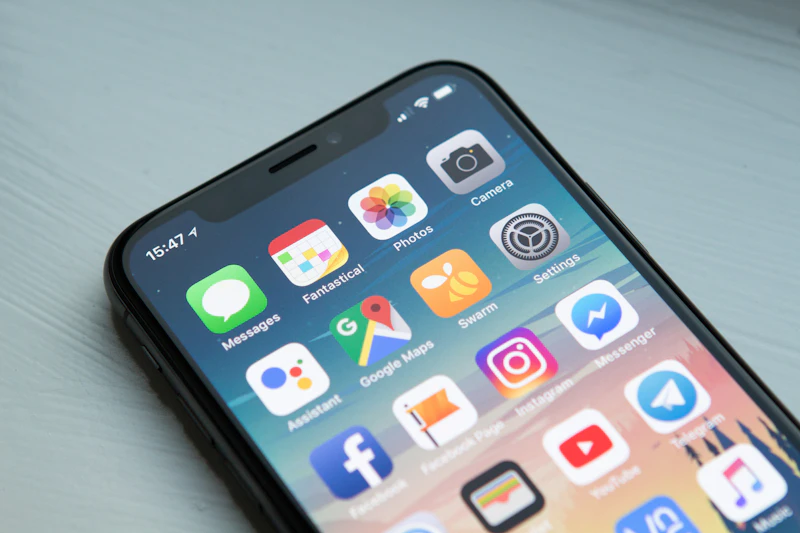
All the merge tools you need are one Safari tab away on any iPhone
Merging PDFs on iPhone doesn't require an app download or a subscription. You can do it directly in your mobile browser in about 30 seconds. Here's exactly how.
Method 1: Using KhanxTools (Free, No App)
Step 1
Open Safari or Chrome on your iPhone and go to khanxtools.com/tools/merge-pdf.
Step 2
Tap the upload area. Your iPhone will show options: choose "Browse" to find PDFs in your Files app, or "iCloud Drive" if your PDFs are stored there.
Step 3
Select your first PDF. Then tap "+ Add More" to add additional PDFs. You can add as many as you need.
Step 4
Drag the file names to reorder them if needed (the top file becomes page 1), then tap "Merge PDFs".
Step 5
Your merged PDF downloads to your iPhone's Downloads folder automatically. You can then share it via AirDrop, email, WhatsApp, or save to iCloud.
✅ Tip: If you can't find the PDFs on your iPhone, make sure they're saved to your Files app first. You can save email attachments to Files by tapping the attachment → Share → Save to Files.
Method 2: Using the Files App (iOS 15+)
Apple's built-in Files app has a basic merge feature:
- Open the Files app
- Long-press the first PDF → tap "Select"
- Tap all the other PDFs you want to merge
- Tap the three-dot menu → "Create PDF"
This works for simple merges but doesn't let you reorder pages or control the output. For more control, use KhanxTools.
Which Method Is Better?
- KhanxTools — more control, reorder files, works with any number of PDFs, no size limit
- Files app — faster for quick merges, no browser needed, but limited options
Will the Quality Be Affected?
No. KhanxTools uses pdf-lib to combine PDFs without re-encoding any content. Images, text, and formatting remain identical to the originals.
Why Merge PDFs on iPhone
Mobile document workflows are increasingly common. You might need to merge PDFs on iPhone when:
- You scanned multiple pages as separate files and need one document
- You're away from your desk and need to combine files before a meeting
- You took multiple mobile scans of a contract and need to submit them as one PDF
- You received separate PDF attachments that need to be combined for a client
Method 1: KhanxTools in Safari (No App Required)
- Open Safari on your iPhone
- Go to khanxtools.com/tools/merge-pdf
- Tap Upload PDFs and select your files from the Files app
- Drag to reorder if needed
- Tap Merge PDFs
- The merged PDF downloads automatically to your Files app
No app installation. Works directly in Safari. Your files never leave your iPhone.
Method 2: Files App (iOS 16+ Built-In)
iOS 16 added native PDF merging through the Files app:

The Files app in iOS 16+ can merge PDFs natively with a few taps
- Open the Files app
- Navigate to the folder containing your PDFs
- Tap the three-dot menu → Select
- Tap each PDF you want to combine
- Tap the three-dot menu at the bottom → Create PDF
This method is fast and works offline. The order of the PDFs in the merged output follows the order you selected them.
Method 3: Shortcuts App
Apple's Shortcuts app has a "Combine PDFs" action:
Create a home screen shortcut for one-tap PDF merging with Shortcuts
- Open Shortcuts
- Create a new shortcut
- Add the Combine PDFs action
- Add a Share or Save File action after it
- Run the shortcut and select your PDF files when prompted
This is powerful if you regularly merge PDFs — you can add it to your home screen for one-tap access.
Reordering Pages After Merging
If the page order isn't right after merging, use the KhanxTools Organize PDF tool in Safari to drag-and-drop pages into the correct order.
The merged PDF downloads to Files and is ready to share immediately
Frequently Asked Questions
Can I merge PDFs on iPhone without an internet connection?
Yes — the Files app "Create PDF" method (iOS 16+) works offline. KhanxTools requires a brief internet connection to load the tool, but processes your files locally after that.
Is there a page limit when merging PDFs on iPhone?
No hard limit, but very large PDFs may take longer to process depending on your iPhone model. Modern iPhones (12 and later) handle 50+ page merges in seconds.
What if my PDFs won't open in the Files app?
Make sure the files are saved locally (not just in a cloud app that needs to sync). Download them fully to Files first, then merge.
Try KhanxTools Free — Right Now
All PDF tools work in your browser. No account needed, no watermarks, no uploads.
Open Free PDF Tools